Whether this is your first CRM or you are moving from another system, importing lets you create records and update your existing database. Each row represents a contact record, and each information column represents a contact property (First Name, Last Name, Email Address, etc.)
Covered in this Article: Pre-requisites: How to import contacts into the CRM Step 1: Setting up your CSV and Custom Fields before importing Step 2: Check for duplicates Step 3: Importing your contacts 1st Method: If your CSV has a phone # and or email, please follow this CSV setup guide 2nd Method: If your CSV does NOT have an email and or phone #, please watch the video below
FAQ
My CSV list is mixed; some contacts have an email or phone #, and some have both an email and phone. How should I proceed?
Some of my contacts have multiple emails and or phone numbers. How should I proceed?
Important note for people that use Keap.
When importing the phone numbers, I get the error code 1007 'invalid required property.
I'm trying to import a CSV with a DND Column, but all contacts are set to DND for ALL channels.
I'm trying to import a CSV with Notes, and I cannot generate more than one note per contact record.
I'm trying to export a CSV with Notes.
Pre-requisites:
* Only users with an 'Admin' role will have the option to import and export contacts. * The import file needs to be a .csv file * Have only one sheet/tab within the spreadsheet * Be smaller than 50MB (Note: a typical .csv file with 4 columns and 10,000 records will be ~500kb in size) * The first row should NOT be blank! Include a header row in which at least one column header corresponds to a field in the system.
How to import contacts into the CRM
Step 1:
Setting up your CSV and Custom Fields before importing
Please Note:
* When adding a phone number that requires a "+" sign, please add an apostrophe at the beginning of the number, like this: '+191668128779 (Correct format). * File Upload and Signature Fields are NOT supported when importing * When important contacts are with a DND column within your CSV, please note that the contact will be DND for ALL the channels. If you would like to DND for specific channels, please set up a workflow first and use tags
Step 2:
Check for duplicates It's always best practice to clean your list and check for duplicates before importing into any software, especially if you are running cold traffic campaigns. Failure to do so can results in deliverability issues
Step 3:
Importing your contacts There are two methods to import contacts depending on your CSV data: 1st Method: If your CSV has a phone # and or email please follow the 1st method below
Please Note:
The Add to Workflow/Campaign toggle only works for new contacts and not contacts that are being updated through the CSV file.
2nd Method: If your CSV does NOT have an email and or phone #, please follow the 2nd method below (Getting contact ID)
Please Note:
* Contact ID unique identifier only shows up if you have a column header with Contact ID written as the header title. * When selecting the unique identifier (Email, Phone or Contact ID) The system will only use identifier selected. It will not use the phone number during the import. * Example: My CSV has mixed emails and phone numbers, some contacts share emails like.
Breaking down advanced filters:
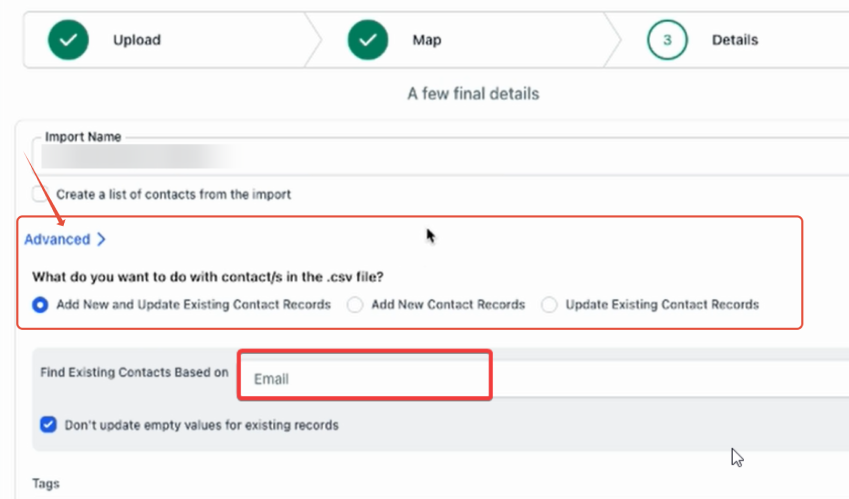
* Add New and Update Existing Contact Records: This means that it will create new contacts, and if you have any leads already in the system, it will update them with the information from your CSV file. The system will check for existing contacts in the sub-account based on the unique identifier (Email, phone, or contact id) you selected (Primary or Secondary preference). * Add New Contact Records: This will create new contact records and will not update existing contacts in the location.
* Update Existing Contact Records: This option will only update existing contact records and not create new contacts in the location.
Please Note:
* While the default unique identifier is Email, our system allows you to choose fields other than Email for de-duplication purposes during the Bulk CSV Upload
Bulk Import Multiple Emails or Phone numbers per Contact:
You can leverage the power of effective contact management with our new 'Additional Emails' and 'Additional Phone numbers' feature, complemented by the Bulk Import capability.
Conditions to import:
To ensure contact uniqueness, both the primary and additional email/phone (if selected as the first preference) will be used. In cases where multiple duplicate matches are found for an additional email/phone, that specific email/phone will be left out.
Any invalid emails/phone in the additional fields will be removed, leaving only valid ones for a contact.
If the email/phone column in the CSV is blank, but the additional email/phone column has values, the first additional email will serve as the primary email.
When updating an existing contact, the specified emails in the CSV will be combined with the ones already associated with the contact.
The "Additional Email/phone" column can hold a maximum of 10 email IDs/phone numbers, with only the first 10 being considered if more are included.
Steps to import:
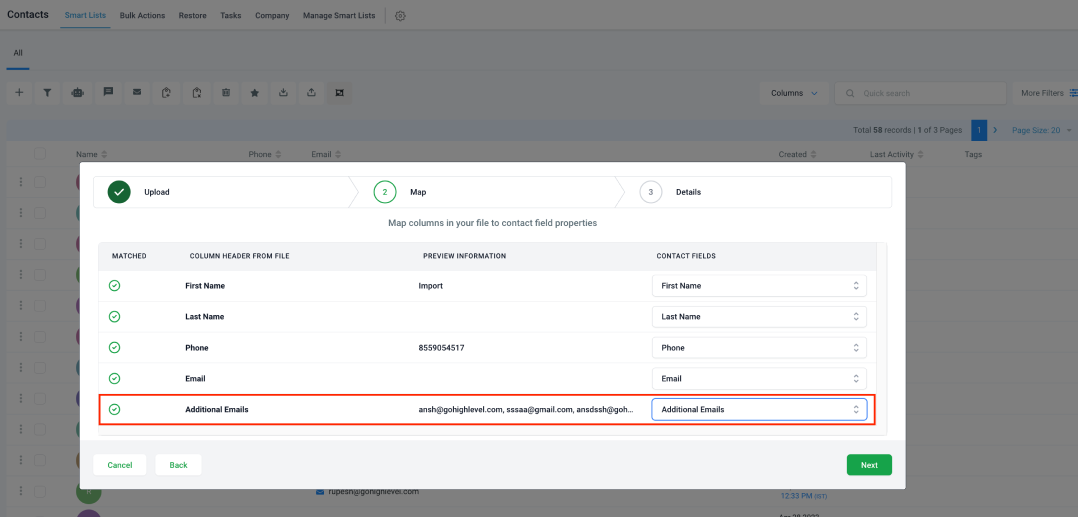
Within the Contact Import section, users will discover new system fields named “Additional Emails" and "Additional Phone numbers"
This feature enables users to map all their extra emails.
During the import process, it's necessary to include all additional emails in one column. These should be separated by commas (,), slashes (/), or semicolons (;), and then mapped to the “Additional Emails” field in the system.
Sample CSV
FAQ
My CSV list is mixed; some contacts have an email or phone #, and some have both an email and phone. How should I proceed?
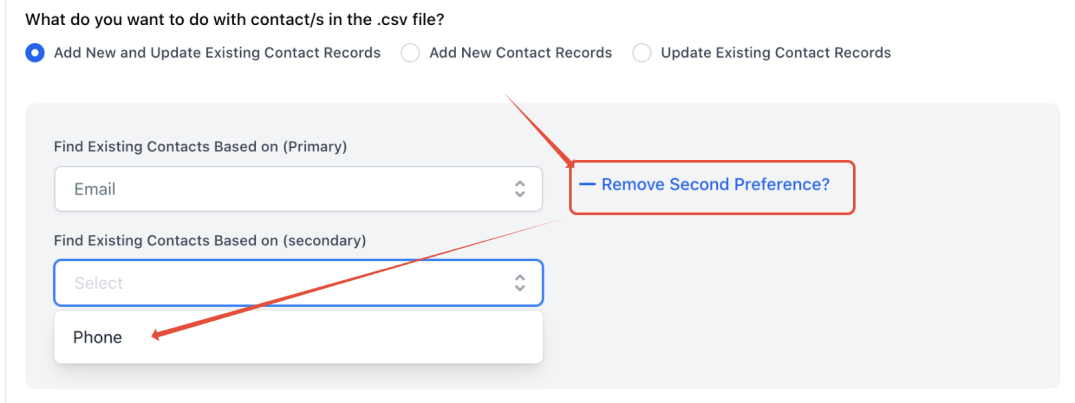
Please use the 'secondary preference' option for a mixed CSV. The system will search for the first preference and then the second if it cannot locate the first. In the example above the first preference is 'Email' and the second is 'Phone'.
Now we can find existing contact based on the secondary field, so if the contact record has only the phone number, we can also upload them!
Some of my contacts have multiple emails and or phone numbers. How should I proceed?
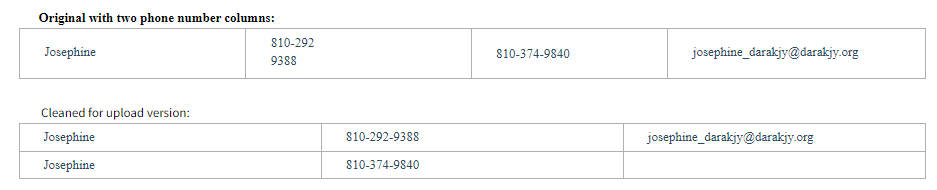
If a contact has multiple phone numbers or emails, please split the contacts into multiple so they will be uploaded.
Example:
Keep the email blank for the second lead with a different phone number because it will create duplicates when we upload contacts with phone numbers as the unique field.
Important note for people that use Keap:
Important note for people that use Keap:
The phone field from the CSV export in Keap is incompatible with GHL. The parenthesis '()' and dashes '-' make it incompatible. We have to highlight the entire column in the CSV file and ensure it is numbered in, remove any parenthesis and dashes, and then we can import without corrupting the data in the CRM.
When importing the phone numbers, I get the error code 1007 'invalid required property':
Add a country code for numbers outside the sub-account country when importing numbers. If the sub-account country is set to the US, you won't need to add a +1 (US country code) to the imported phone numbers. However, if you're importing numbers outside of the US, you will need to add the country code
I.e. A sub-account that has set its business location to the US would need to add '+44 to call the UK. If the Sub-Accounts country is set to a different country other than the US (like - the UK, Australia, etc.), to call/SMS US numbers you would need to add a '+1 to the country's area code within the CSV File.
I'm trying to import a CSV with a DND Column, but all contacts are set to DND for ALL channels. When importing contacts with a DND column within your CSV, please note that the contacts will be DND for ALL the channels. If you want to DND for specific channels, please set up a workflow first and use tags for each channel. Ie: I would like john to be DND for SMS only. I would create a workflow that DNDs a contact when a tag 'DND SMS' is added. So now, on the CSV, I would add the Tag 'DND SMS' next to John's name. When importing, this would fire automation to DND John for SMS Only.
I'm trying to import a CSV with Notes, and I cannot generate more than one note per contact record. When importing contact notes, you may only have one note per contact record with a limit of 5000 characters. Please use the large text custom field if you have more than one note or more characters than the allowed amount.
I'm trying to export a CSV with Notes. As of now, We do not have any limit for CSV import for notes, and As per our current export behavior, we support Max of 255 Characters for the last note.
Ready to Boost Your Rankings?
Don’t let your competitors outrank you. Start climbing the search results today with our expert SEO services.